Documents & Companies
This guide covers how to view filed documents and company information in the NMPRC Public Portal.
All Filed Documents
The All Filed Documents tab displays all documents filed under Pleadings for any docket.
It includes details such as Docket Number, Filed Date, Filed By, and Company Name.
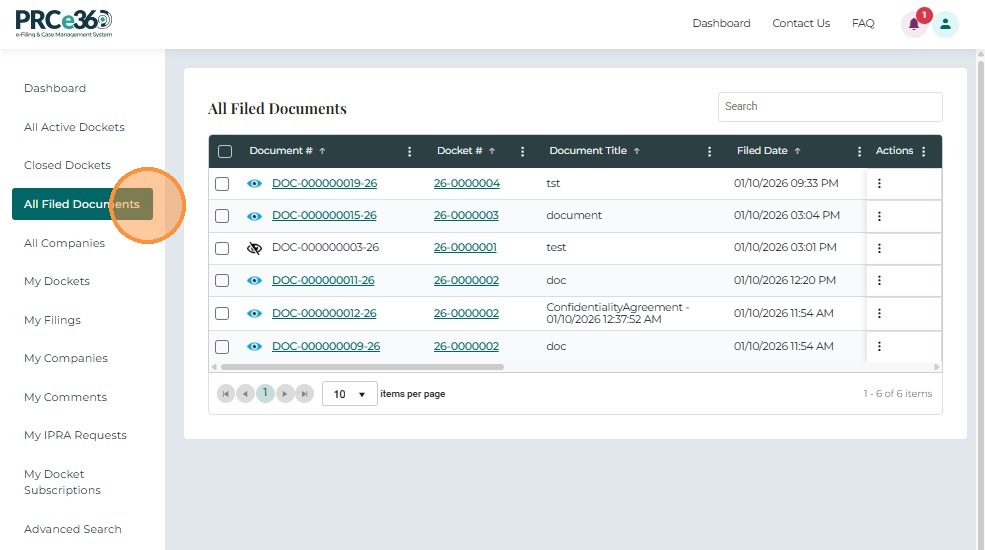
Click the Document ID to open a document. Documents that have a closed eye icon are private and cannot be viewed. Within the document viewer, users can use the Download or Print options to save or print the file.
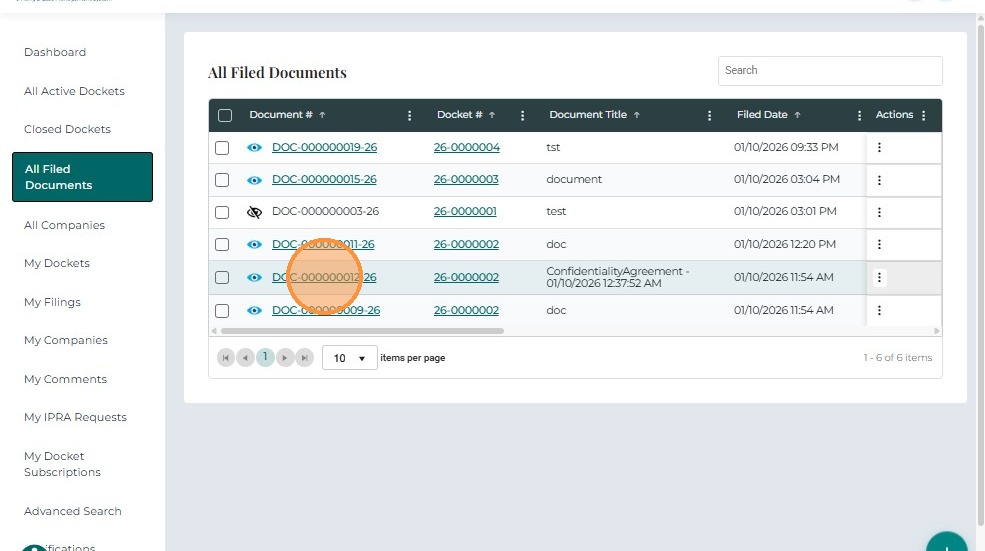
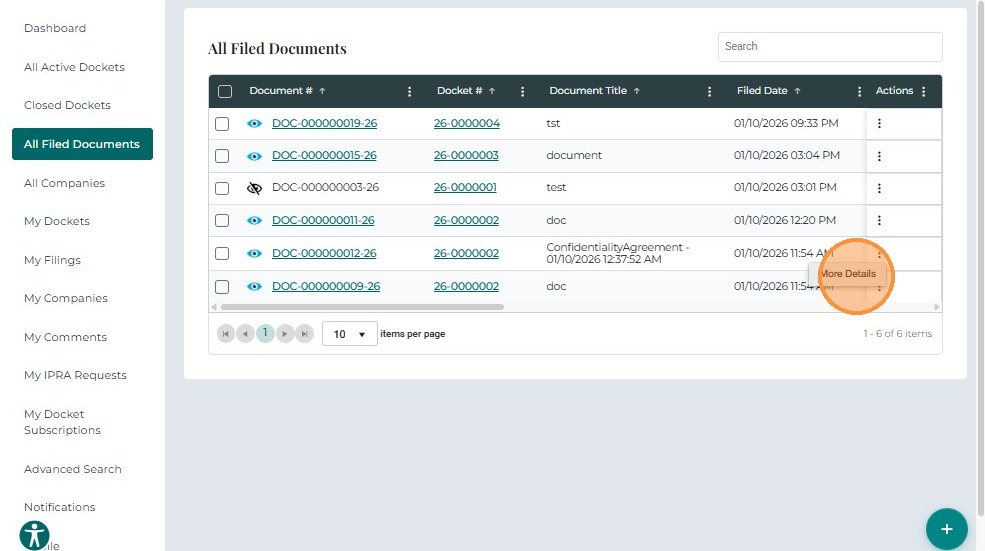
To view more actions, go to the Action column, click the three-dot menu, and select More Details to display additional options.
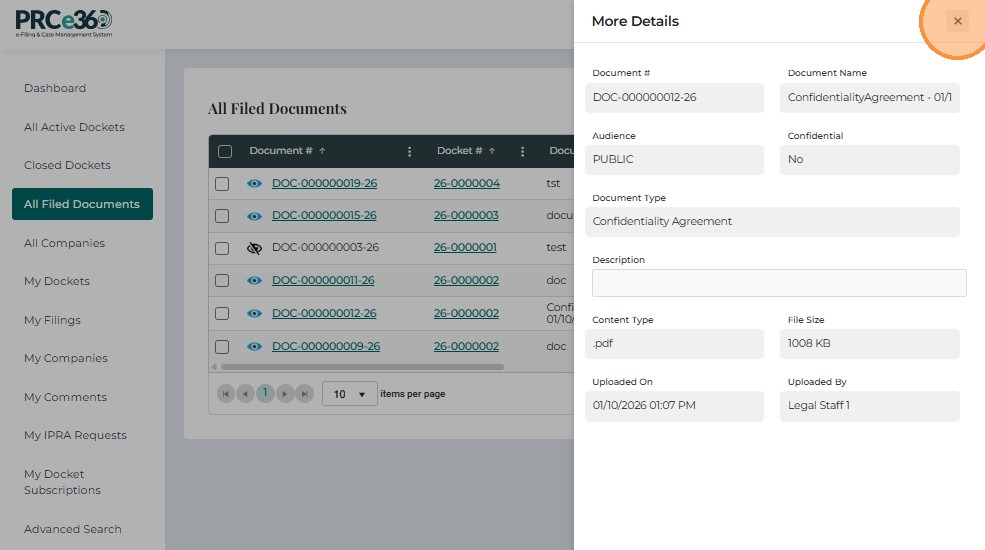
A side panel opens displaying additional details about the selected document.
All Companies
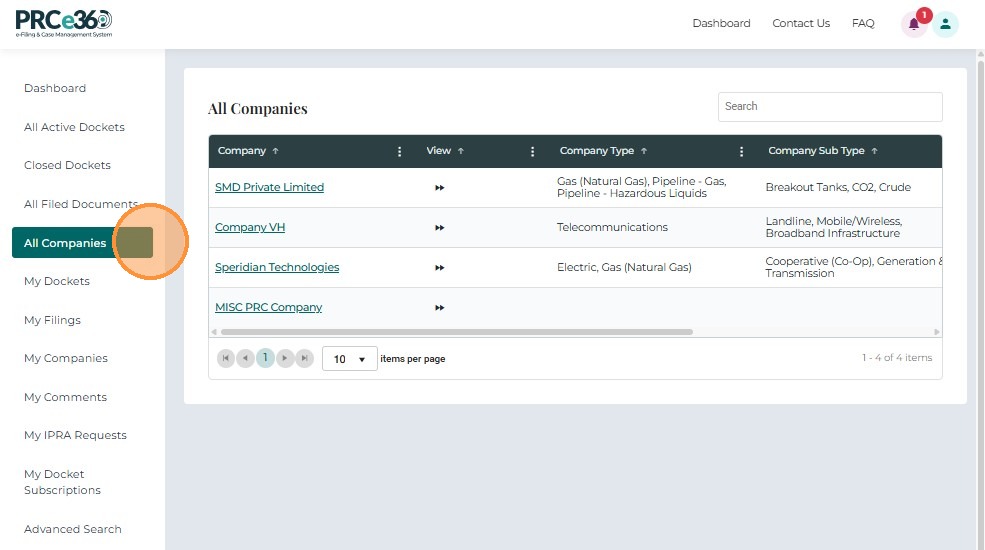
The All Companies tab lists all registered companies and displays details such as Company Name, Company Type, Company Sub-Type, Primary Contact, and Status in a grid view.
Company 360 View
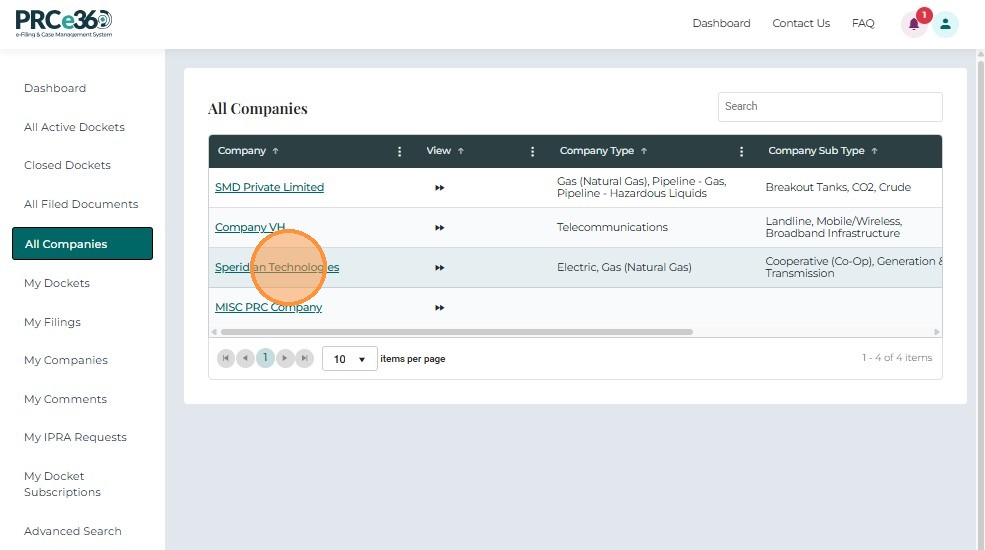
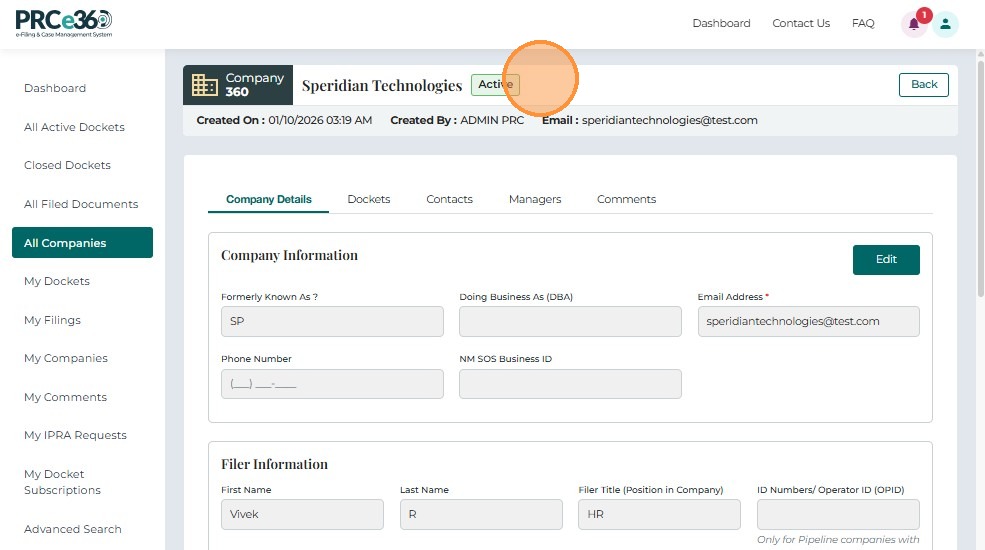
Clicking a company name opens the Company 360 View.
Company Details
The Company Details tab includes:
- Company Information
- Filer Information
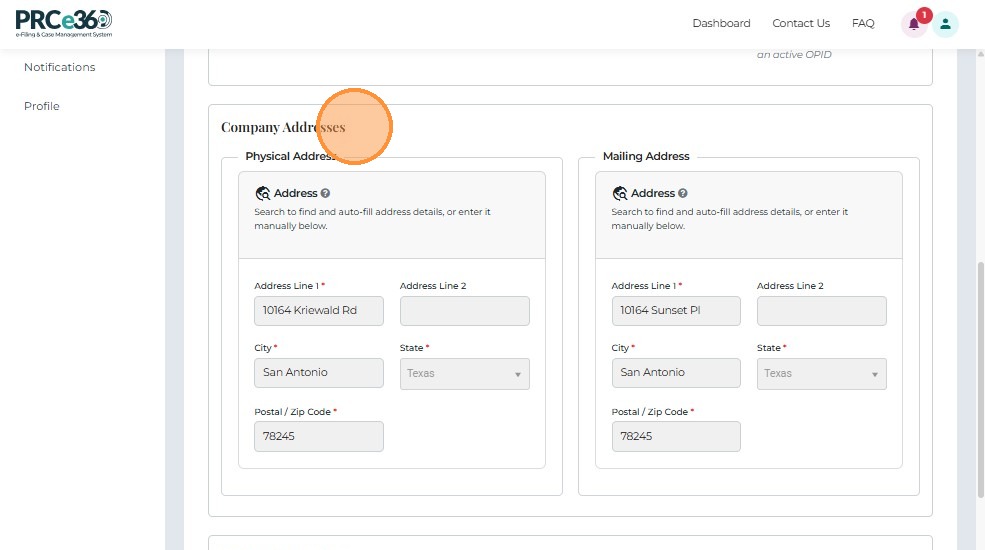
- Company Address
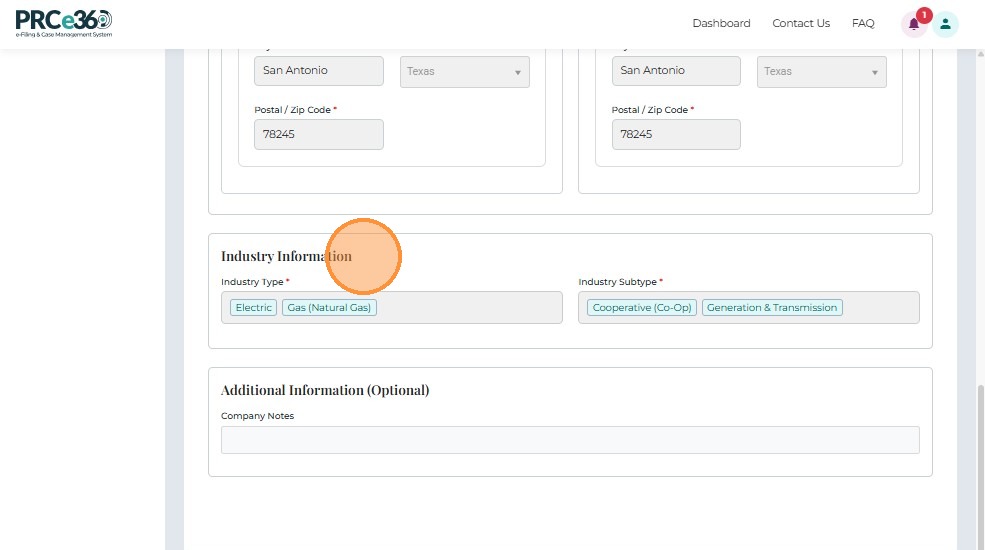
- Industry Information
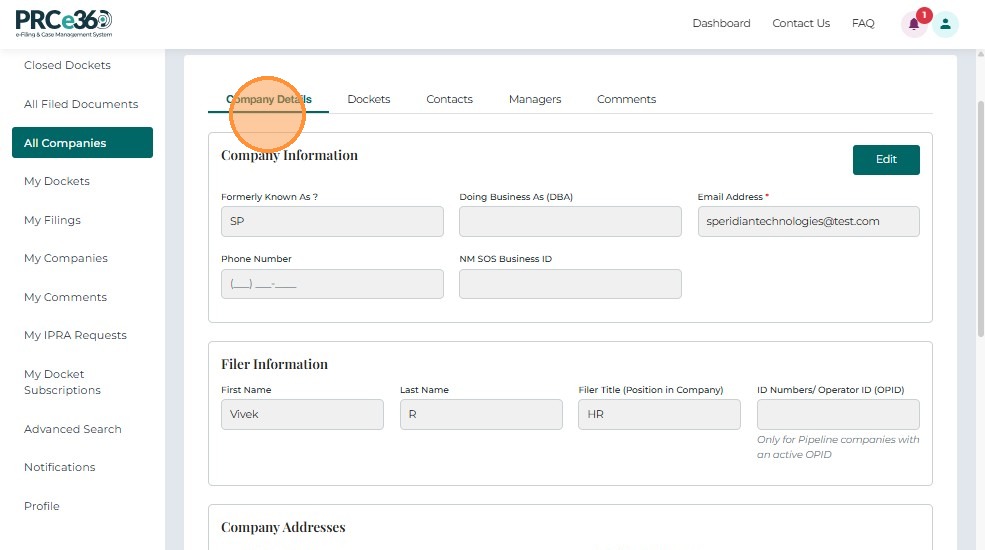
The Company Address section includes both Primary Address and Mailing Address.
The Industry Information section contains the Industry Type, Sub-Type, and additional optional details.
Dockets
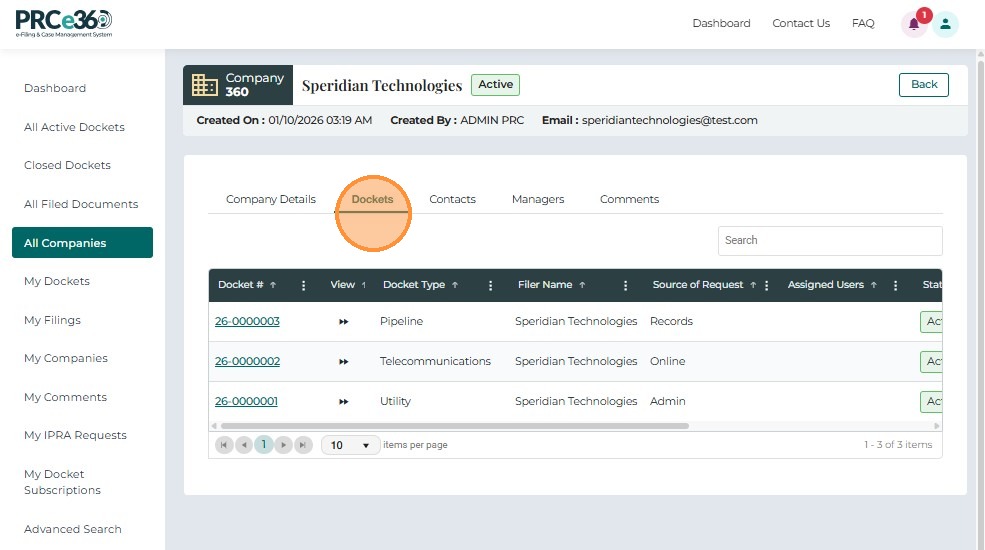
The Dockets tab within the Company 360 View lists all dockets filed by the company, displaying the Docket Number, Docket Type, and other related details.
Each Docket ID is clickable and opens the Case 360 View.
Contacts
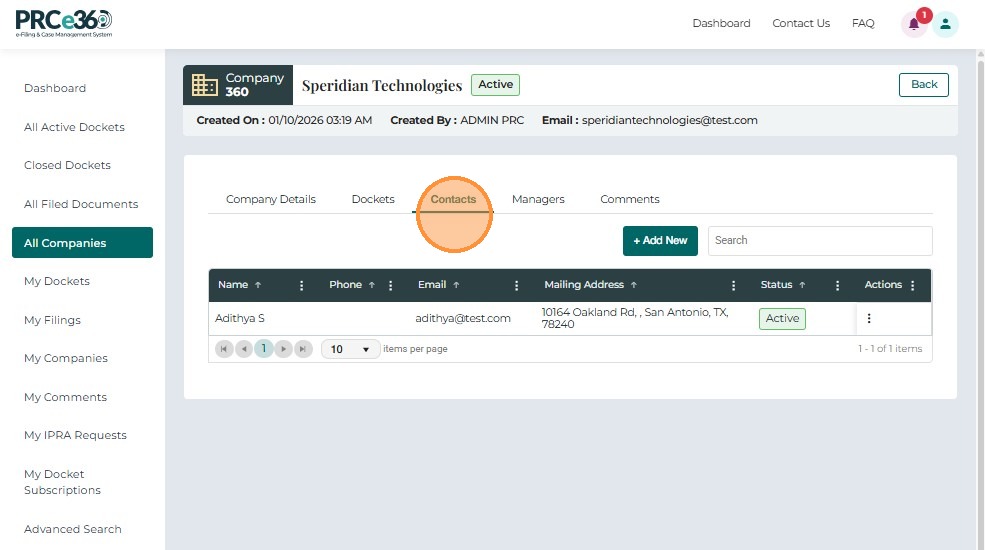
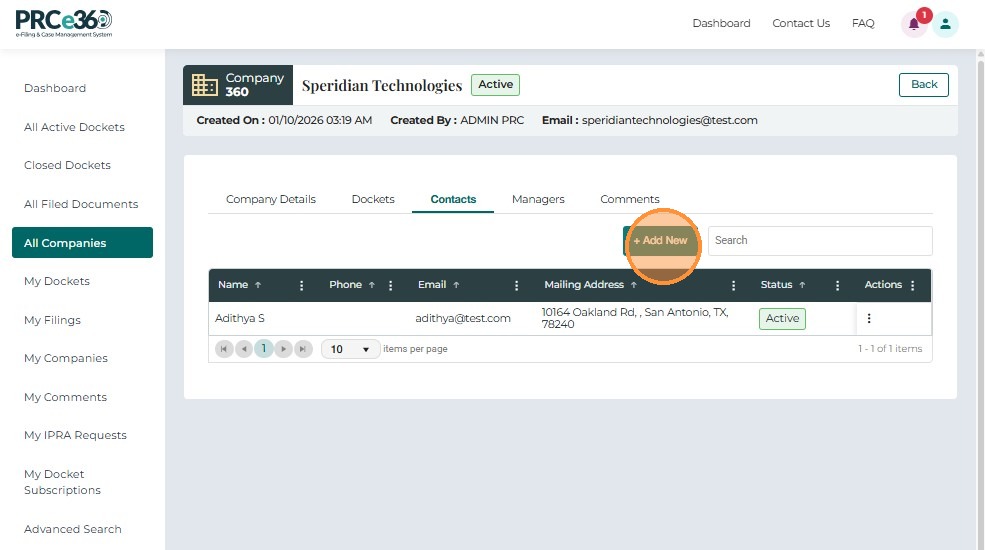
The Contacts tab displays all contacts added to a company, including their Name, Phone, Email, Mailing Address, and Status.
Add New:
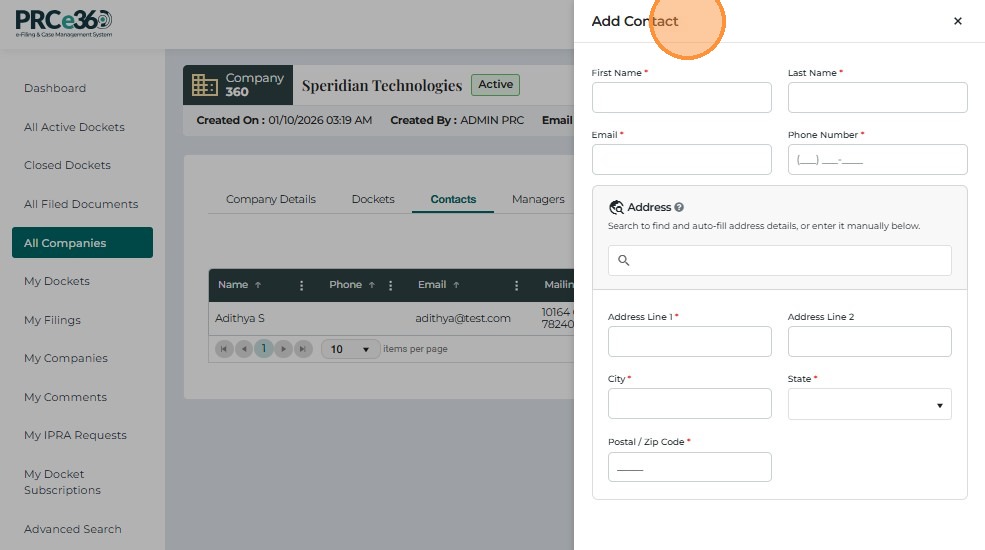
Users can add new Contact by clicking on Add new button, fill in the fields and click Submit button.
Available Options
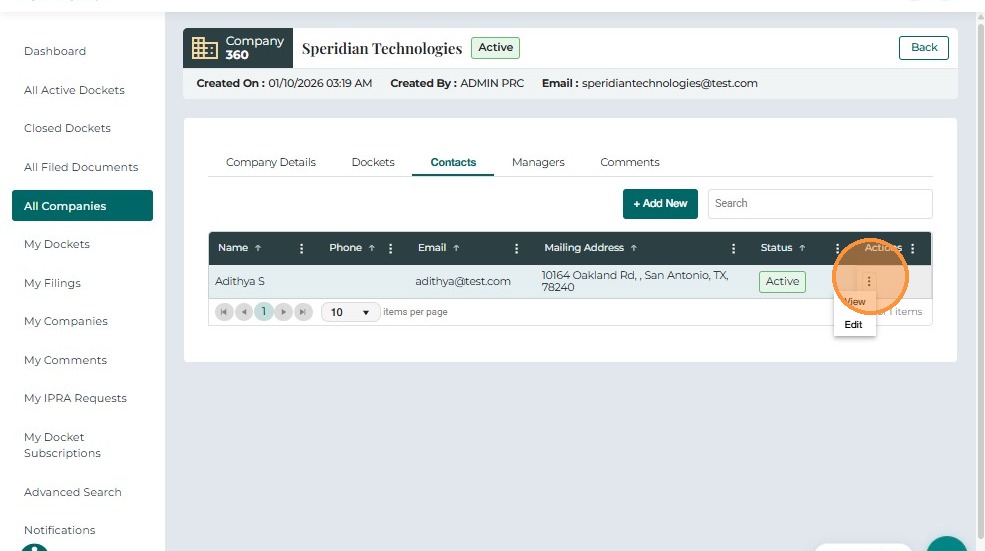
Users can navigate to the Actions column and click the three-dot icon to view available options: View, Edit, or Delete.
-
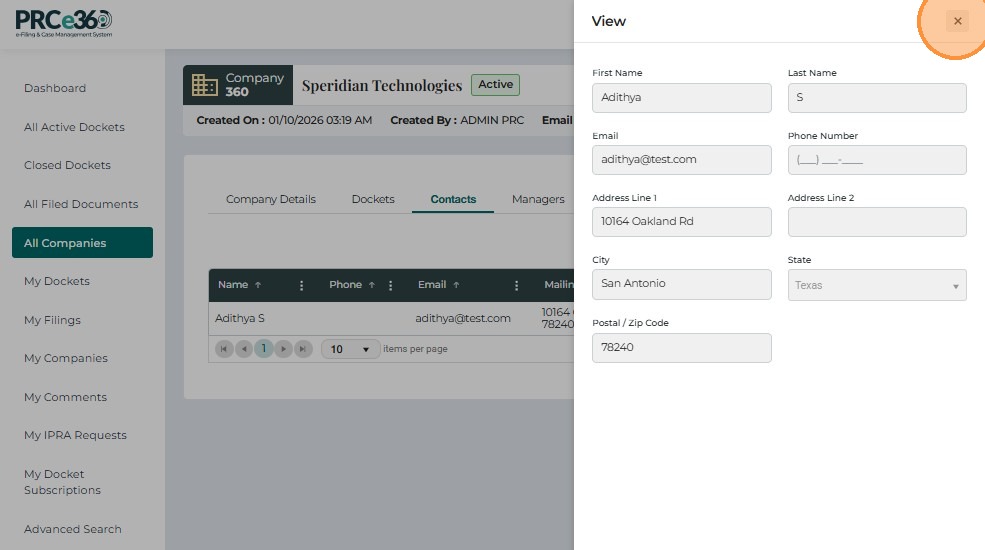
View: Opens a side panel displaying detailed contact information.
-
Edit: Opens a side panel where contact details can be modified.
Click Submit to save changes.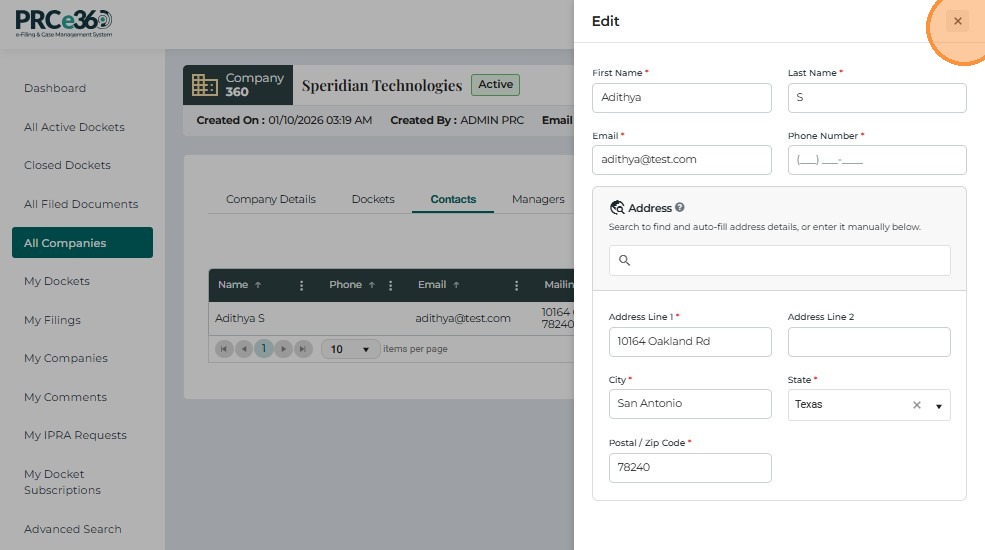
Managers
This tab displays all users that have management access to the company.
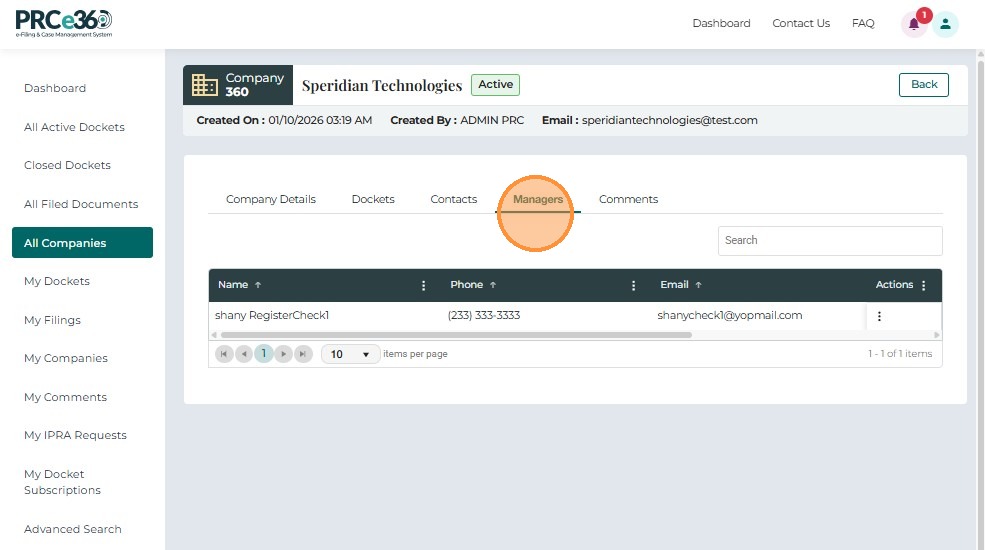
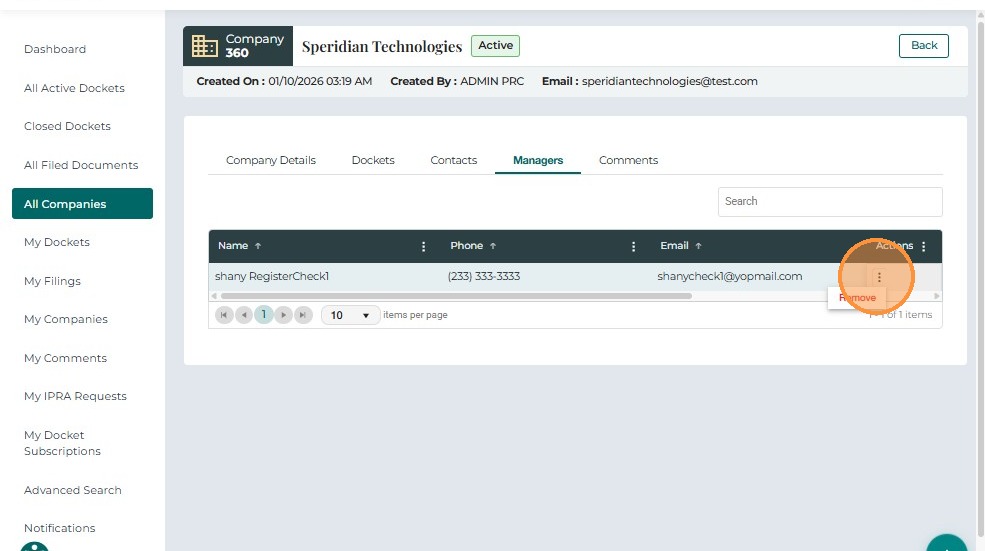
Users can remove a manager using the Actions column.
Comments
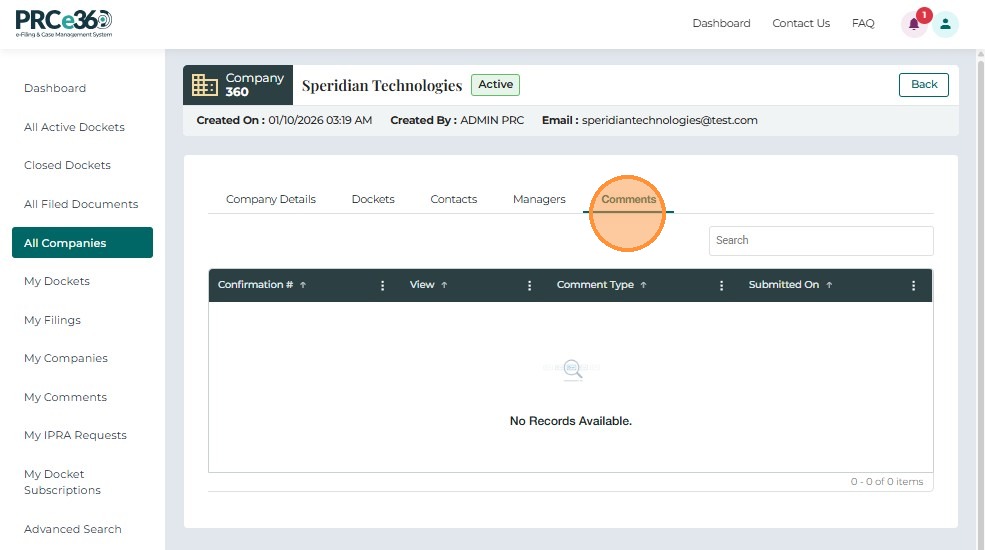
The Comments tab lists all comments submitted by the company, showing the Comment ID, Type, Date, and Status (e.g., Accepted, Pending, In Review).
Related Guides
- Dashboard Overview - Learn about the dashboard
- Viewing Dockets - View dockets and Case 360 details